Restore an earlier version of a résumé
Open the version history, save a checkpoint, and bring back an older version without losing the current one.
By the end of this article you can go back to an earlier version of a résumé. Restoring deletes nothing: your current text is kept as a version too.
Restore a version
In the editor header, select History. The Version history panel opens.

Find the version you want. Every time you select Save Changes, a version is kept.
Select Restore this version.
When asked Replace the current text with this version?, select Restore.
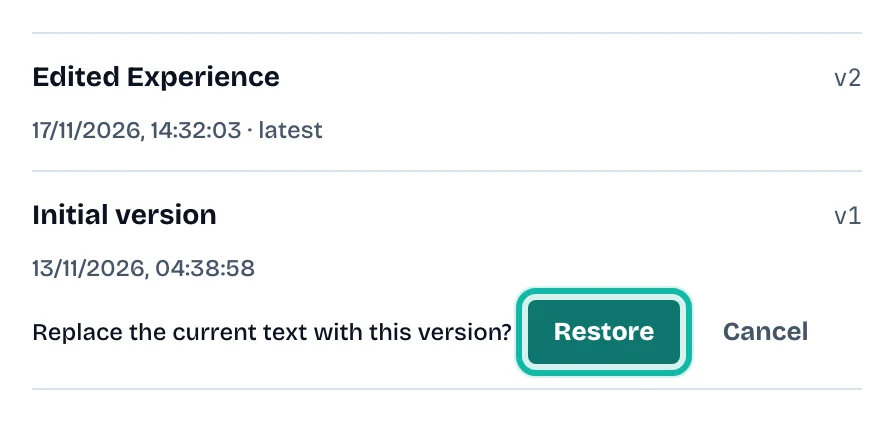
The page reloads with the restored version.
Save a checkpoint
Before a big rewrite, select Save a checkpoint now in the same panel. The version is labelled Checkpoint.
What if…
It says "No versions yet"? Select Save Changes after an edit and it appears here.
It says the résumé changed in another tab? Reload, then try again.
It says that version uses a template that is not on my plan? Restore is blocked for that version. See Upgrade, cancel or fix a payment.
I restored the wrong one? Open History again. The text from before the restore is a version.
A coach's suggestion changed my résumé? The earlier version stays in History. See Accept or reject a coach's suggestions.