Edit your résumé sections
Open a section, change it, save it, and add or remove sections such as Languages or Interests.
By the end of this article you can fill in and save every section of your résumé while watching the preview.
Edit a section
Open your résumé from the Your resumes page by selecting its title.
In the Your resume list on the left, select a section name, such as Contact or Experience. The list shows how many sections are done, for example 4/9 done.
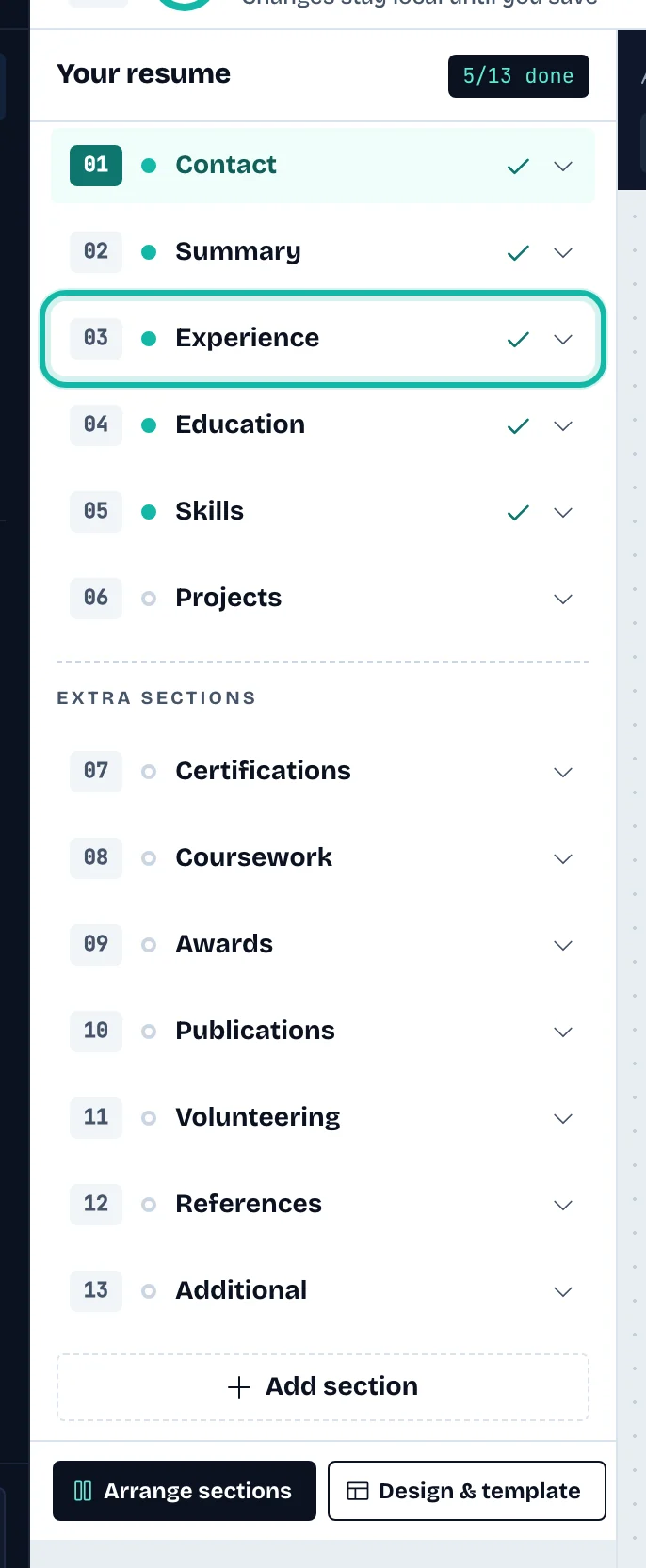
Change the fields in the editor that opens. For sections with several entries, select Add experience, Add education or the matching button, fill in the entry, then add it.
Select Save Changes. The status line shows Saved.

The preview on the right shows your saved résumé. Use the zoom controls and Fit to resize it. On a phone, select Preview at the top and use the Resume section menu to switch sections.
Add or remove a section
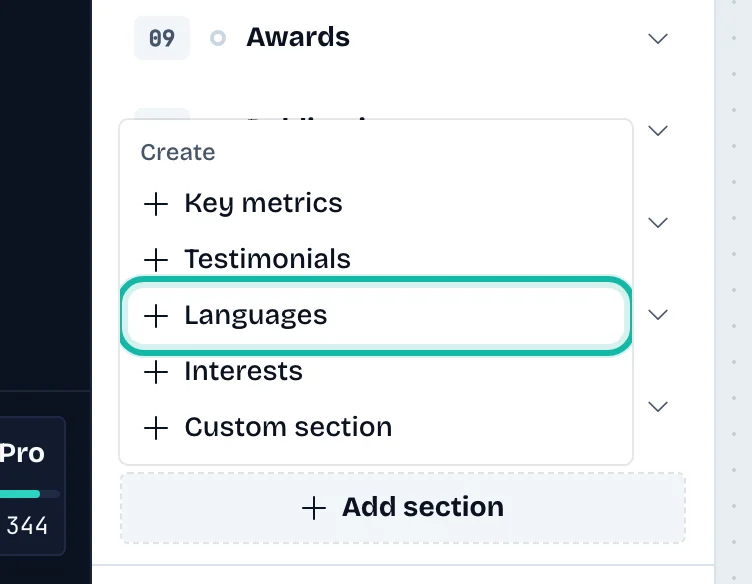
Select Add section under the list.
Under Show a section, pick a hidden section to bring it back. Under Create, pick Key metrics, Testimonials, Languages, Interests or Custom section.
To take a section off the résumé, select the bin icon (Remove section) next to its name. A section you created, such as Languages, is deleted with its items.
What if…
The status says "Not saved. Your changes are still here"? Select Try again.
It says "Offline: changes are kept on this device"? Reconnect, then select Try again.
It says "Changed elsewhere"? You edited the same résumé in another tab or device. Select Resolve and choose which version to keep.
It says "Complete required fields before saving"? Fill in the required fields of that entry first.
I need to undo a change after saving? See Restore an earlier version.
I want AI to help with wording? See Improve points and your summary with AI.