Manage My résumés
Search, filter and sort your résumés, open tailored copies, duplicate and delete.
By the end of this article you can find any résumé quickly, copy it, or delete it.
My Resumes shows each base résumé as a card. Tailored copies made for jobs are stacked behind their base. A base and its copies are a "family".
Find a résumé
Select My Resumes in the side panel.
Type in the search box. It searches titles, skills, companies and the résumé text. A Matched: line shows where the words were found.
Choose All, Base or Tailored.
Open Sort resumes and choose Last edited, Name, Newest or Most variants.

Select Clear to reset.
Open tailored copies
Select a stacked card, which is labelled with a count such as "2 tailored". The tailored versions open below it. Each shows a Tailored badge.
Duplicate or delete
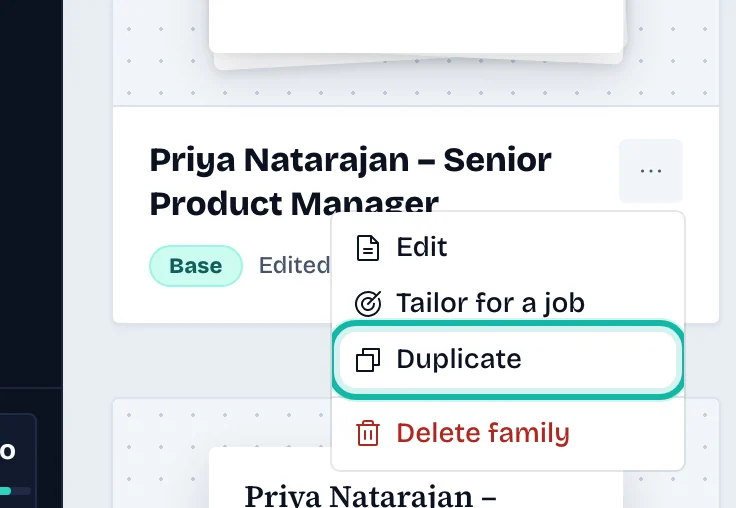
Select the three dots on a card to open Actions for that résumé.
Choose Edit, Tailor for a job, Duplicate, or Delete family on a base résumé. On a tailored copy, the choices are Edit, Duplicate as base and Delete variant.
To delete, read the dialog and select Delete family or Delete variant.
What if…
There are no cards? Select Start from scratch or Import resume. See Start a new résumé.
It says "No matching resumes"? Select Clear search and filters.
I want a copy for one job? See Save a tailored copy for a job.