Choose a template and change styles
Pick a template and paper size, then adjust fonts, sizes, colours and margins.
By the end of this article your résumé has the look you want, and the change is saved. Your text does not change when you change the design.
Choose a template
Open your résumé and select Design & template under the section list.
Search by job or style in Search templates, for example "nurse" or "minimal". Or select a category such as ATS-friendly or Healthcare.
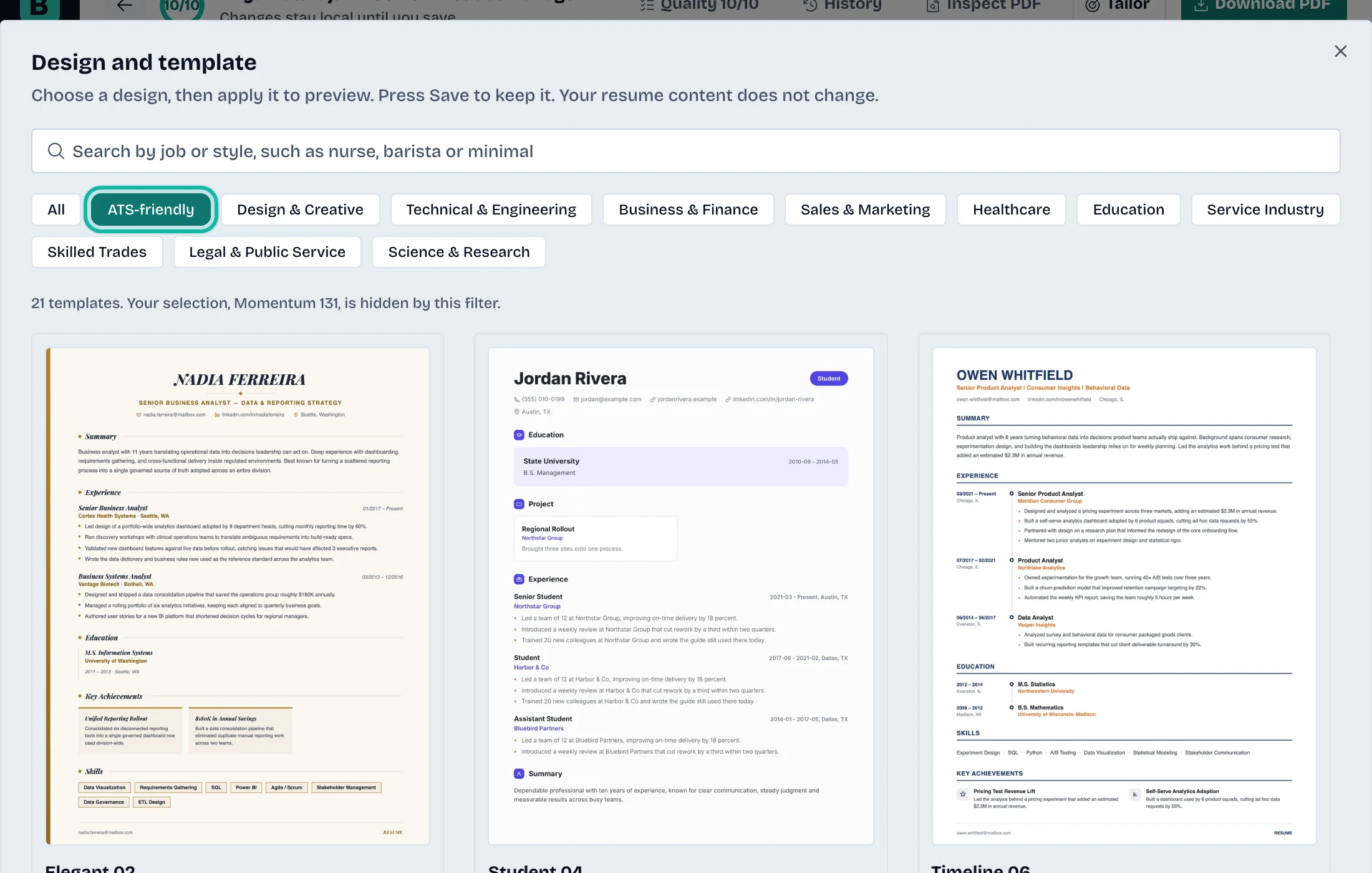
Select a template card. Cards marked Pro need the Pro plan; a Free account sees the ones it can use first.
Under Paper size, choose US Letter or A4.
Select Apply. The preview changes.
Select Save at the right end of the toolbar above the preview to keep it.
Change fonts, colours and margins
The toolbar above the preview has quick controls: Font, Text size, Line height, Section spacing, and Narrow margins, Normal margins and Wide margins.
For finer control:
Select Styles.
Pick Name & headline, Section headings or Body text.
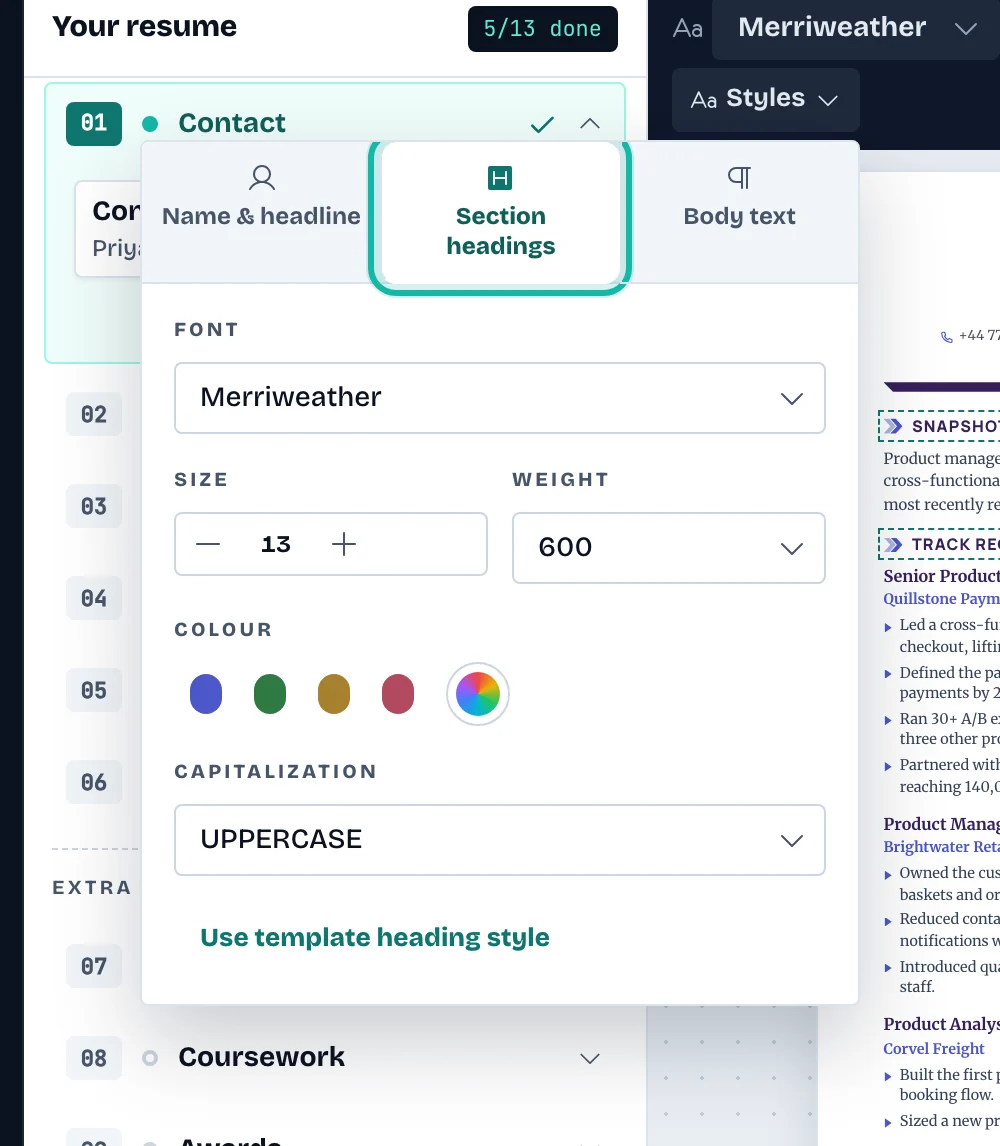
Change Font, Size, Weight, Colour or Capitalization.
Select Save.
To undo your styling for one group, select Use template name style, Use template heading style or Use template text style.
What if…
It says a template is on the Pro plan? Choose one without the Pro mark, or select Upgrade to use it. See Upgrade, cancel or fix a payment.
Save is grey? Nothing has changed since the last save.
Will the PDF look the same? The PDF uses the same renderer as the preview. Check it with Check how hiring software reads your PDF.
The template spreads text across more pages? See Arrange sections and pages.