Import a résumé from a PDF or Word file
Upload a PDF or DOCX, check what we read, and save it as a new résumé or replace an existing one.
By the end of this article your existing résumé is in the editor as fields you can change. Nothing is saved until you confirm.
Import a file
Select Import Resume in the side panel, or Import on the Your resumes page.
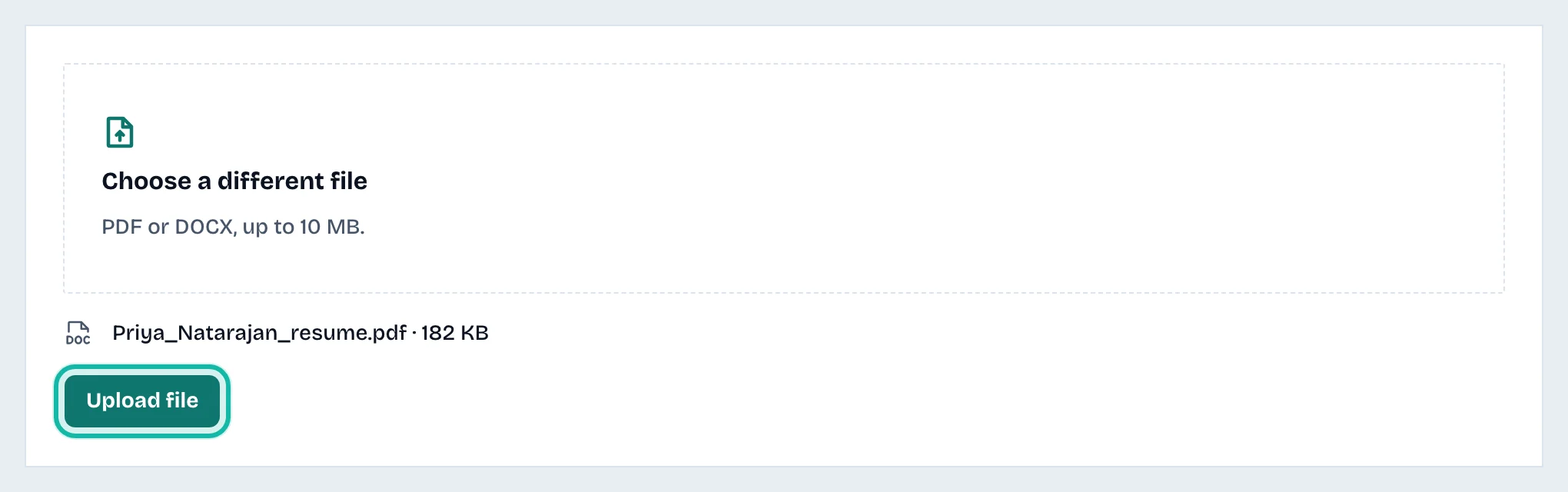
Select Choose a resume file and pick a PDF or DOCX of up to 10 MB.
Select Upload file. The file is stored privately. No credits are used yet and no résumé exists yet.
Select Read my resume. This uses credits. If the file cannot be read, the credits are returned.
Wait for the Check what we read page.
Check what we read
Read the heading above the list: Nothing looks missing, a count such as 2 to check, or Little could be read.
Go through the lines starting with Missing: or Check:.
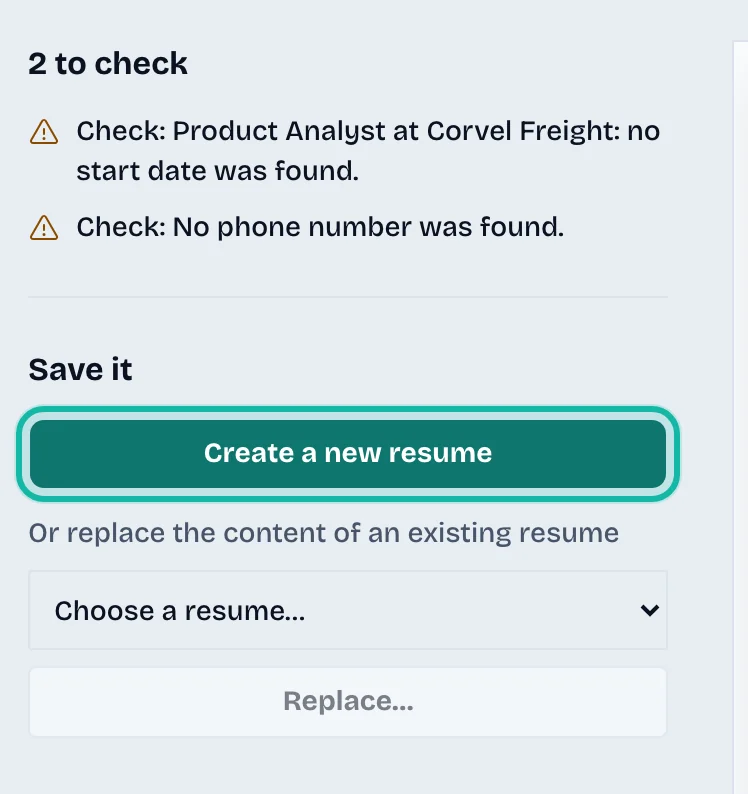
Under Save it, select Create a new resume. Or, to overwrite one you already have, choose it under Or replace the content of an existing resume, select Replace…, then Replace resume.
After saving, fix anything flagged in the editor. See Edit your résumé sections.
What if…
It says "Little could be read"? A scanned PDF with no text cannot be read. Export a text version from the program that made it, or start a blank résumé. Select Choose another file.
I used the wrong file? Select Use another file before you read it.
It says the upload has expired? Upload the file again.
It says my plan has no room for another résumé? Replace an existing résumé instead, or see Understand credits and plans. The Free plan includes one import.
Do I pay again for the same file? Importing the same file within 7 days returns the earlier result without using credits.