See and restore earlier versions
Open a CV's saved versions and bring back an earlier one.
By the end you can see what changed in a CV and restore an earlier version.
Every save of a CV is kept. Restoring does not delete anything: it adds the old version as the newest one.
Open the candidate and select History in the top bar.
Read the list in Version history. Each entry shows the version number, how it came to be, and the date.
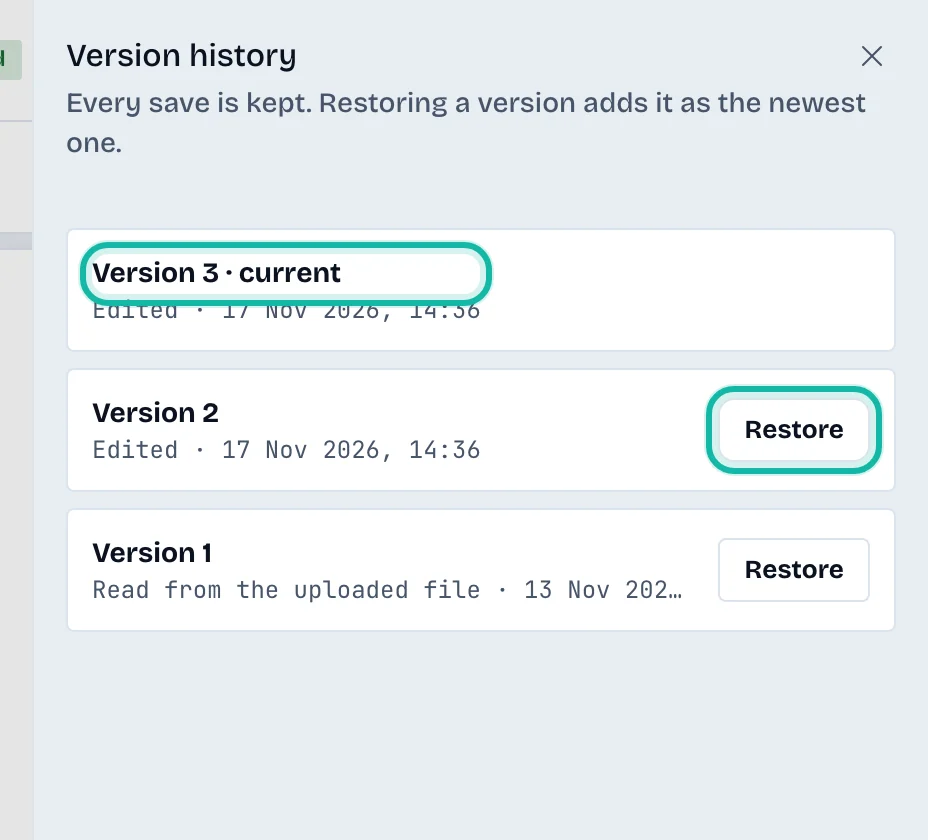
Select Restore next to the version you want.
The page reloads with that version as the current one, and a message says Version 2 restored (with your version number).
What the entries mean
Read from the uploaded file: the first version, made when the file was read.
Edited: a change you or a teammate saved.
Restored: an earlier version brought back.
Tailored copy created: the starting point of a tailored copy.
The newest version is marked current and has no Restore button.
What if…
It says the history could not be loaded? Close the panel and open it again.
Restore failed? Reload the page and try again.
I want to see the original beside the export? That is a different comparison. See Compare an export with the original.