Set up your agency branding
Add your logo, colour and recruiter contact so exports and the portal carry your agency identity.
By the end your logo and recruiter contact are saved and can be shown on exports.
Owners and admins can open Branding in the left menu.
Add your logo
Under Logo, select Upload logo. The logo must be a PNG or JPEG up to 512 KB.
To change it later select Replace logo. Select Remove to delete it.
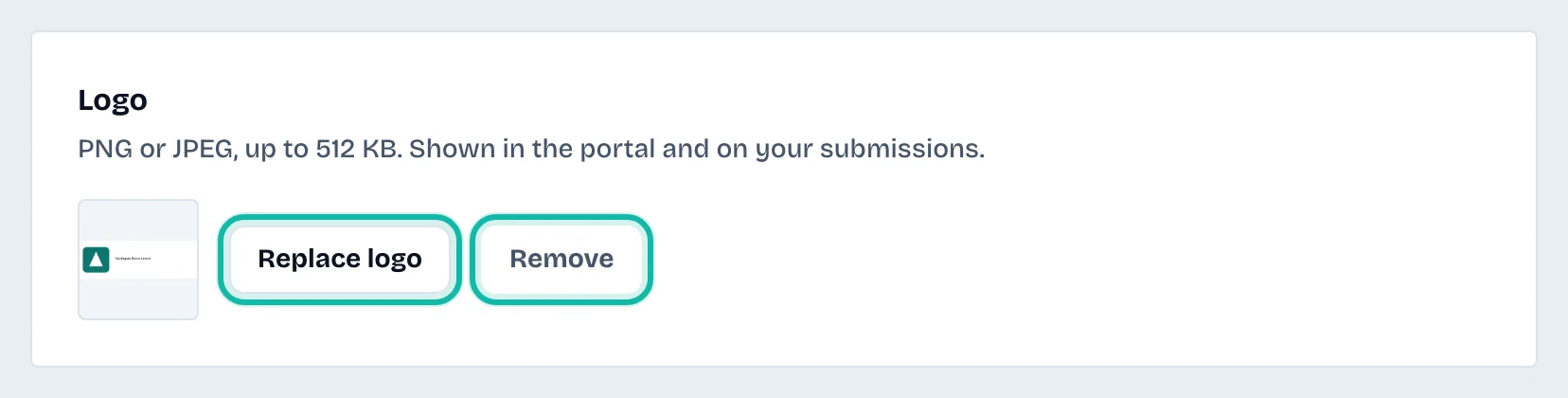
The logo shows in the portal and, when you choose it, on your exports.
Set the name, colour and welcome text
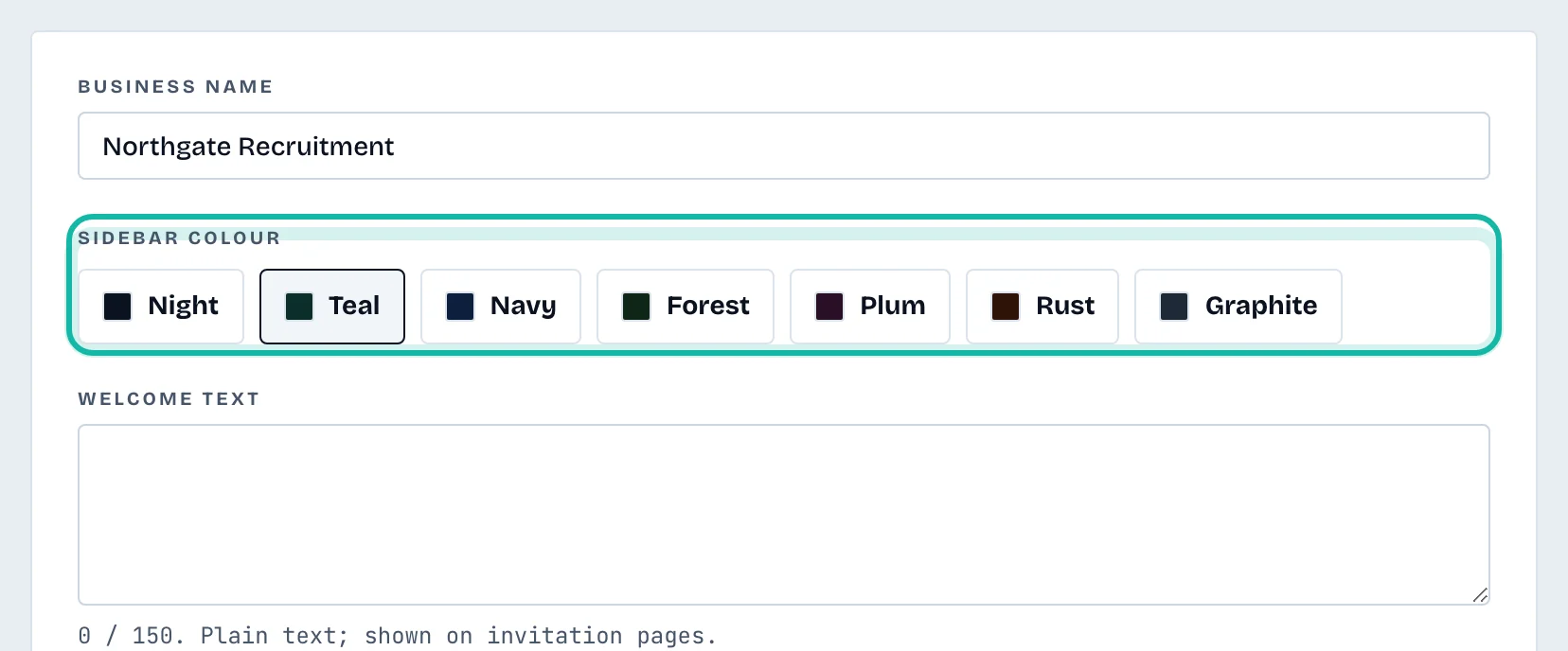
Change Business name if you need to.
Pick a Sidebar colour: Night, Teal, Navy, Forest, Plum, Rust or Graphite.
Write a Welcome text of up to 150 characters. It shows on the dashboard and invitation pages.
Add the recruiter contact
Under Recruiter contact (printed on submissions when chosen) fill in Name, Email and Phone.
Select Save branding. A message says Branding saved.
The contact appears on an export only when you tick Show recruiter contact on the export page. See Prepare an export for a client.
What if…
I cannot see Branding? Staff do not have it. Ask an owner or admin.
The logo is rejected? Use a PNG or JPEG of 512 KB or less.
Show recruiter contact is greyed out on an export? No contact is saved yet. Add one here.